With DIALux you have the possibility to modify the room with room elements. For example you can insert a sloped ceiling that cuts the existing wall surfaces and creates new surfaces called “ceiling 2”. The other room elements like the flat ceiling become a part of the room as well and you can create new room surfaces at the same time.
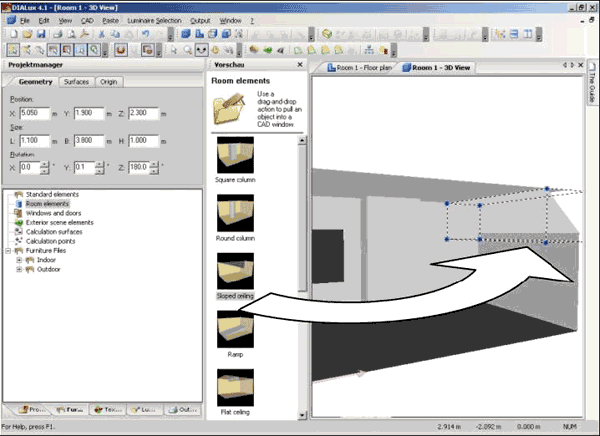
Fig. 102 Edit rooms – Insert room element
To insert room elements into a room, first of all you have to open the Furniture tree. Then select the file Room Elements. All room elements are displayed in the centre of the window. You can insert these simply by Drag & Drop into the 3D view or the ground plan view.
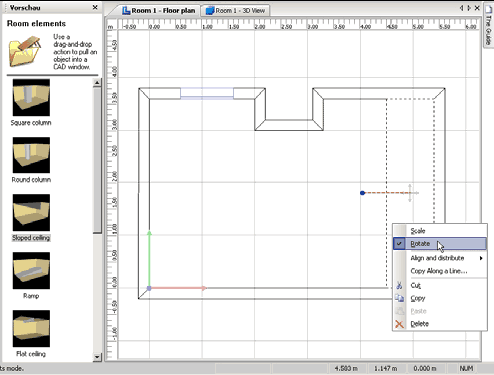
You can likewise create the room elements in the ground plan view. Particularly the scaling option of the room elements is easier in the ground plan view. You can scale and rotate the room element simply by using the mouse.
Fig. 103 Edit rooms – Edit room element
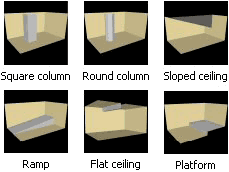
With DIALux it is possible to insert the following room elements. Naturally you can also combine these. As soon as a room element overlaps another, the invisible part is no longer considered in the calculation.
Fig. 104 Edit rooms – DIALux room elements
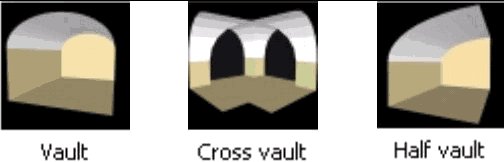
The room elements vaults are new in DIALux 4. Further possibilities for the construction of complicated ceiling forms have been improved. Now it is also possible to copy vault ceilings.